NinjaTrader Support Forum  
X

Attention!

This website will be down for maintenance from Friday May 24th at 6PM MDT until Saturday May 25th at 11AM MDT. We apologize for the inconvenience. If you need assistance during this time, please email sales@ninjatrader.com


Go Back   NinjaTrader Support Forum > NinjaScript Development Support > General Programming

General Programming General NinjaScript programming questions.

Reply
 
Thread Tools Display Modes
Old 12-30-2010, 06:49 AM   #1
DionysusToast
Senior Member
 
Join Date: Jul 2010
Location: Bangkok
Posts: 162
Thanks: 4
Thanked 38 times in 12 posts
Default Dionysus New Year Present – Ninja & Excel

All

I recently had the need to hook Ninja up to Excel. After perusing various forums, I couldn't find any instructions on how to do it. In the end, I had to figure it out myself. I posted the instructions below on another, less public forum before Christmas but decided since then to give it to a wider audience.

If you want Ninja hooked up to Excel - here's how to do it...

Microsoft Interop

This is a pre-requisite. It allows communications between Ninja & Excel. Microsoft has 2 versions:

Office 2003
Download details: Office 2003 Update: Redistributable Primary Interop Assemblies

Office 2007
Download details: 2007 Microsoft Office System Update: Redistributable Primary Interop Assemblies

The particular dll we are interested from is: Interop.Microsoft.Office.Interop.Excel.dll
The target directory for this dll should be: <My Documents>\NinjaTrader 7\bin\Custom

You can either install the Interop Assemblies into this directory or just move the dll file there.

Referencing the DLL in Ninja

Next you need to create a reference to the Interop DLL in Ninja. To do this, you need to get to the references window which is available when editing an indicator. Just choose any indicator for this.

Open Ninja Control Centre -> Tools -> Edit NinjaScript -> Indicator -> Select ANY Indicator

Once the indicator is open, right click in the body of the indicator window and select "References". You will see a window appear that looks like this:
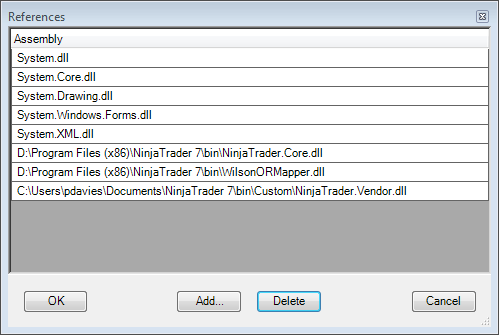


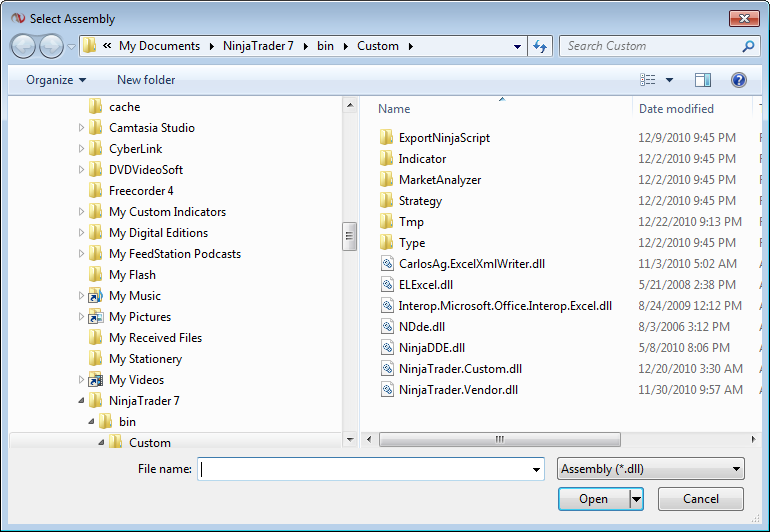
Click "Add", it will then open up an explorer window looking at the <My Documents>\NinjaTrader 7\bin\Custom directory - locate the dll and click "insert"


Then you should see the following in the references window:
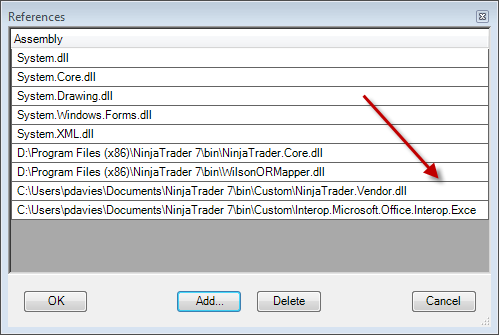


Now you are ready to go and start writing code to integrate with Excel


to be continued...
Last edited by DionysusToast; 12-30-2010 at 11:06 AM.
DionysusToast is offline  
Reply With Quote
The following 10 users say thank you to DionysusToast for this post:
Old 12-30-2010, 06:50 AM   #2
DionysusToast
Senior Member
 
Join Date: Jul 2010
Location: Bangkok
Posts: 162
Thanks: 4
Thanked 38 times in 12 posts
Default

So now we need to actually post data to Excel. The whole of Excels object model is available to you and I can't show you how to use all of it but I can show you how to do the basics. The goal of this post is to show you how to open a workbook.

1) Using Declarations

Any Indicator/Strategy that uses Excel will first need to ensure that the we include the microsoft assembly. We are also using System.IO to do some work on the file name.


Code:
#region Using declarations
using System;
using System.ComponentModel;
using System.Diagnostics;
using System.Drawing;
using System.Drawing.Drawing2D;
using System.Xml.Serialization;
using NinjaTrader.Cbi;
using NinjaTrader.Data;
using NinjaTrader.Gui.Chart;
using Excel = Microsoft.Office.Interop.Excel; 
using System.IO;
#endregion


Now - you can either invoke Excel with a blank sheet OR you can have a pre-formatted spreadsheet to open. I prefer the latter - set up my spreadsheet with the correct formats etc. and then invoke it from Ninja, so we need some variables to store the file name and worksheet name. In this case, the spreadsheet is C:\DTTest.xls. Other vars here should become clear as we continue.

Code:
        #region Variables
        // Wizard generated variables
            private int myInput0 = 1; // Default setting for MyInput0
        // User defined variables (add any user defined variables below)
            private string excelFile = @"C:\DTTest.xls"; 
            private string excelSheetName = "Sheet1";
            private bool workSheetFound = false;
            private bool excelOpen=false;
            private string fullFileName;
            private string simpleFileName;
            Excel.Application excelApp;
            Excel._Workbook excelWorkBook;
            Excel._Worksheet excelSheet;
            Excel.Range excelRange;
            private int rowCount = 1;
            private int temp;
        #endregion


This part alone was a real pain in the ass to get right, although the actual code I ended up with looks so simple! If the spreadsheet is open, it will hook up to it, so you can work with the spreadsheet. If it isn't already open, then it will open it for you.

Code:
private void OpenWorkbook(string FileName)
        {

            try
            {
                excelApp = (Excel.Application)System.Runtime.InteropServices.Marshal.GetActiveObject("Excel.Application");
            }
            catch
            {
                excelApp = new Microsoft.Office.Interop.Excel.Application();
            }
            simpleFileName = Path.GetFileName(excelFile);
            try
            {
               excelWorkBook = excelApp.Workbooks.get_Item(simpleFileName);
            }
            catch
            {
                excelWorkBook = (Excel._Workbook) (excelApp.Workbooks.Open(excelFile,
                    false, true, Type.Missing,Type.Missing, Type.Missing, Type.Missing,Type.Missing,
                    Type.Missing, Type.Missing, Type.Missing,Type.Missing, Type.Missing, Type.Missing,Type.Missing));
            }
        }
The OpenWorkbook method, when invoked will ensure your workbook is open & ready to use (note that I'll put up a full NinjaScript at the end).
DionysusToast is offline  
Reply With Quote
The following 3 users say thank you to DionysusToast for this post:
Old 12-30-2010, 06:51 AM   #3
DionysusToast
Senior Member
 
Join Date: Jul 2010
Location: Bangkok
Posts: 162
Thanks: 4
Thanked 38 times in 12 posts
Default

As well as finding/opening the spreadsheet - we have to find the worsheet to play with. In the above example, we are looking have a sheet named "Sheet1". The following code will return the worksheet as an object to be manipulated.

Code:
        // Return the worksheet with the given name.
        private Excel.Worksheet FindSheet(Excel._Workbook excelWorkBook, string excelSheetName)
        {    
            foreach (Excel.Worksheet excelSheet in excelWorkBook.Sheets)    
            {        
                if (excelSheet.Name == excelSheetName) return excelSheet;   
            }    
            return null;
        }
So - now we have our spreadsheet open and we have a specific worksheet from that spreadsheet loaded as an object and we can manipulate it.

If we want to change the properties, you first create an object for the range of cells you want to change. For more info on the Excel object model - go here:

http://msdn.microsoft.com/en-US/libr...=VS.80%29.aspx

Here's some basic stuff:

Code:
                excelRange = excelSheet.get_Range("B1","B201");
                excelRange.Font.Color = System.Drawing.ColorTranslator.ToOle(System.Drawing.Color.DarkBlue);
                excelRange.Interior.Color = System.Drawing.ColorTranslator.ToOle(System.Drawing.Color.Cornsilk);
                excelRange.Font.Bold = true;
                excelRange.ClearContents();
The first line creates an object of cells and then the following 4 lines reformat and clear the cells.

To post to excel, you need to do cell by cell (as far as I am aware). In this case, you can't use the "A1" type column/row pairs references - you have to use row NUMBER and column. Again - there could be other ways that I am not aware of.

An example of posting data into cells would be :

Code:
            excelSheet.Cells[rowCount,1] = ToDay(Time[0]);
            excelSheet.Cells[rowCount,2] = ToTime(Time[0]);
            excelSheet.Cells[rowCount,3] = Open[0];
            excelSheet.Cells[rowCount,4] = High[0];
            excelSheet.Cells[rowCount,5] = Low[0];
            excelSheet.Cells[rowCount,6] = Close[0];
            excelSheet.Cells[rowCount,7] = Volume[0];
All fairly simple so far...
DionysusToast is offline  
Reply With Quote
The following user says thank you to DionysusToast for this post:
Old 12-30-2010, 06:56 AM   #4
DionysusToast
Senior Member
 
Join Date: Jul 2010
Location: Bangkok
Posts: 162
Thanks: 4
Thanked 38 times in 12 posts
Default

This is pretty much all there is to it. So - it's time for an example.

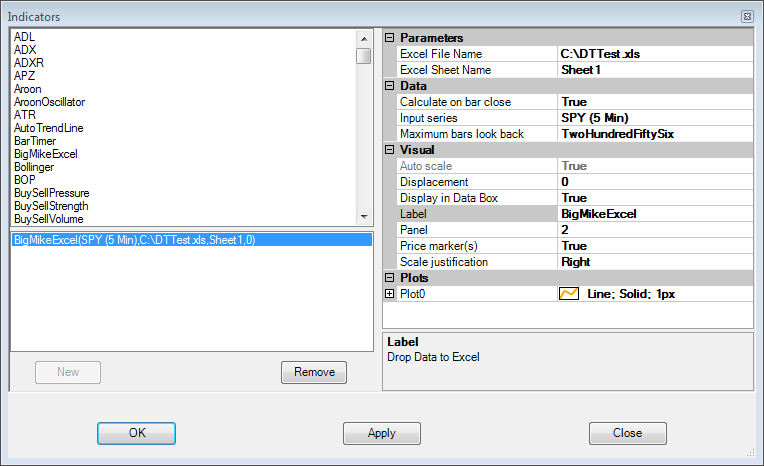
I am attaching an indicator called "BigMikeExcel" (no prizes for guessing which forum I posted this to first), as usual - just attach it to a chart. Note that you will not be able to import this indicator if you haven't installed and referenced the Microsoft DLL. This is a simple indicator without clutter for you to examine how this works. Please don't complain about there being little in the way of error trapping here!

When you attach the indicator, you will see that you have a space to put in Excel File and workseet name. I am attaching a spreadsheet that can be used. You can put it anywhere on your hard drive - just make sure you change these parameters.


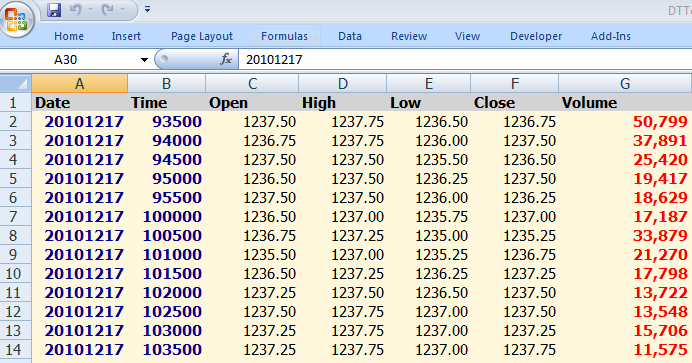
The indicator will do the following:
1 - Find the open spreadsheet OR open it if it is not already open
2 - Format the background colours & foreground colours of colums A-G
3 - Put in headers in row 1
4 - Post the date, time, OHLC, volume to columns A-G
5 - When it's posted 200 prices, it'll start again from the top & keep rolling round

I know this is fairly useless in terms of functionality - it's just to show you how to get the comms working.

Your spreadsheet should look like this:


That's it - any questions - feel free to ask. Like I say, I'm not a C# programmer, so my code wont be perfect. The whole of Excels object model is available so you can literally do anything that Excel can do.

NOTE - on other forums, I also included a spreadsheet "DTTest.rar" - unfortunately, this forum won't let me attach that !!

Good luck.

DT
Attached Files
File Type: zip BigMikeExcel.zip (3.3 KB, 381 views)
Last edited by DionysusToast; 12-30-2010 at 07:02 AM.
DionysusToast is offline  
Reply With Quote
The following 9 users say thank you to DionysusToast for this post:
Old 12-30-2010, 07:13 AM   #5
NinjaTrader_Brett
NinjaTrader Customer Service
 
NinjaTrader_Brett's Avatar
 
Join Date: Dec 2009
Location: Denver, CO, USA
Posts: 6,498
Thanks: 109
Thanked 291 times in 280 posts
Default

Hello,

Wow, Very nice write up sir. I will be sure to forward others users and the NinjaScript support team that ask for such functionality be directed to this well written post. Thank You for your contribution to the NinjaTrader community!
NinjaTrader_Brett is offline  
Reply With Quote
Old 01-10-2011, 05:27 PM   #6
carlton
Senior Member
 
Join Date: Dec 2010
Posts: 169
Thanks: 19
Thanked 2 times in 2 posts
Default

Toast,

I would really love to try this out. However, I'm quite a novice to excel programming.

Can you please tell me how to incorporate the declarations/code into excel.

Cheers mate.

Carlton
carlton is offline  
Reply With Quote
Old 01-10-2011, 05:56 PM   #7
carlton
Senior Member
 
Join Date: Dec 2010
Posts: 169
Thanks: 19
Thanked 2 times in 2 posts
Default

Toast,

I download Download details: 2007 Microsoft Office System Update: Redistributable Primary Interop Assemblies

However, the download doesn't seem to include the Interop.Microsoft.Office.Interop.Excel.dll

Any suggestions.

Cheers

Carlton
carlton is offline  
Reply With Quote
Old 01-11-2011, 04:04 AM   #8
carlton
Senior Member
 
Join Date: Dec 2010
Posts: 169
Thanks: 19
Thanked 2 times in 2 posts
Default

Quote:
Originally Posted by DionysusToast View Post
So now we need to actually post data to Excel.
Toast,

I've found the DLL.

I'm such a novice to programming, therefore could you please start me off on how about posting the data to excel and where to insert the code??

Cheers mate.
carlton is offline  
Reply With Quote
Old 01-11-2011, 04:21 AM   #9
DionysusToast
Senior Member
 
Join Date: Jul 2010
Location: Bangkok
Posts: 162
Thanks: 4
Thanked 38 times in 12 posts
Default

Carlton

Have you been through the tutorials in the Ninjatrader help guide? That should get you started in terms of coding.

For everything else - I have attached a zip file to post number 4 in this thread that has code in it. This will make sense if you have been through the tutorials.

Cheers

Pete
DionysusToast is offline  
Reply With Quote
Old 01-11-2011, 04:26 AM   #10
carlton
Senior Member
 
Join Date: Dec 2010
Posts: 169
Thanks: 19
Thanked 2 times in 2 posts
Default

Toast,

Thanks for getting back to me.

I have read the help guides, which is far more descriptive than the tutorials, but I couldn't find information on adding code, in either.

Cheers
carlton is offline  
Reply With Quote
Old 02-25-2011, 12:31 PM   #11
amruta
Junior Member
 
Join Date: Apr 2010
Posts: 2
Thanks: 0
Thanked 0 times in 0 posts
Default

Hi DionysusToast ans carlton,

As mention in thread # 1, I download O2003pia.msi in my copmputer.

I have Windows Vista in my computer.

After this, I am unable to find the interop.Microsoft.Office.Interop.Excel.dll in my computer.

Kindly help to find this dll or let me know how can I get this dll in <My Documents>\NinjaTrader 7\bin\Custom directory ?


Thanks
Amruta


amruta is offline  
Reply With Quote
Old 02-25-2011, 07:26 PM   #12
DionysusToast
Senior Member
 
Join Date: Jul 2010
Location: Bangkok
Posts: 162
Thanks: 4
Thanked 38 times in 12 posts
Default

Take a look in the drive:/WINDOWS/assembly or drive:/WINNT/assembly folders.

Lots of people have had trouble with the install not putting the files in the target directory. I checked Microsoft site and this is where it says the files will be installed.

Let me know if they are there or not. If they are there, you can copy them into the Ninja directory above.

http://msdn.microsoft.com/en-us/library/Aa159923
DionysusToast is offline  
Reply With Quote
Old 03-11-2011, 01:28 PM   #13
newbie0101
Member
 
Join Date: Feb 2010
Posts: 41
Thanks: 29
Thanked 4 times in 4 posts
Default

Hi DionysusToast, just found your thread and tried following to experiment with it. I downloaded the installer pkg from MS to the folder you specify and then run the installer and put it there as well, but it puts nothing on my computer that i can find except the EULA,Readme,and the o2007.msi which i click on and it runs then disappears. Did search for .dlls looking for
interop.Microsoft.Office.Interop.Excel.dll
not anywhere, went in folder assembly but cannot find. I have no winnt folder that i can find. I have office 2007 running on windows 7 ultimate is there something else i need to have? Any help with this is greatly appreciated and Kudos to you for a great thread.
newbie0101 is offline  
Reply With Quote
Old 03-12-2011, 06:31 AM   #14
newbie0101
Member
 
Join Date: Feb 2010
Posts: 41
Thanks: 29
Thanked 4 times in 4 posts
Default

Hi, well got them installed and can find them, if can help anyone else the way i got there is installed Visual Studio 10, then re-installed the Download details: 2007 Microsoft Office System Update: Redistributable Primary Interop Assemblies and the dlls were installed to Local disk/program files(x86)/microsoft visual studio 10.0/visual studio tools for office/PIA/office12 and office 14 folder. (being where office 12 is in path)
newbie0101 is offline  
Reply With Quote
Old 03-12-2011, 07:21 AM   #15
DionysusToast
Senior Member
 
Join Date: Jul 2010
Location: Bangkok
Posts: 162
Thanks: 4
Thanked 38 times in 12 posts
Default

Hi

I think the install is putting them in the same place regardless of the destination directory.

Try C:\windows\assembly - that's where mine are on Windows 7. If they are there you can just copy to the Ninja folder.

Let me know how it works.

Pete
DionysusToast is offline  
Reply With Quote
Reply

Thread Tools
Display Modes

Posting Rules
You may not post new threads
You may not post replies
You may not post attachments
You may not edit your posts

BB code is On
Smilies are On
[IMG] code is On
HTML code is Off

Forum Jump

Similar Threads
Thread Thread Starter Forum Replies Last Post
Data Streaming Into Excel and connecting Ninja to Excel cjgovi Connecting 13 02-28-2011 10:21 AM
Instrument not present in default list is present on the DOM instrument dropdown cunparis Version 7 Beta General Questions & Bug Reports 5 10-22-2010 04:49 AM
Data from Ninja to Excel MAX Automated Trading 1 02-09-2010 02:21 PM
New Year (?) problem. No live data with Zen Fire/Ninja platform mkoumis Connecting 11 01-02-2009 05:30 AM
Linking Ninja and Excel RedDuke General Programming 3 08-16-2007 03:16 AM


All times are GMT -6. The time now is 06:50 AM.